Guide · model performance · free tool

Find every DWG hiding
in your Revit model.

Imported CAD is the #1 cause of slow, heavy, unpredictable Revit files - and Revit gives you no single place to see it all. This guide explains why imports hurt, where they hide, and how to remove them safely with the free Parapet Audit add-in.
Why imported CAD makes Revit slow

Where Revit lets you look (and where it doesn't)

Built-in toolShowsDoesn't show
Manage Links → CAD Formatslinked DWGsimported DWGs, where they are used
Project Browser → Revit Links / Importsimport symbols by nameinstances, views, weight, nesting
Purge Unusedunused import symbolsused ones - the heavy ones
Select All Instancesone symbol at a timean overview

The free way: Parapet Audit

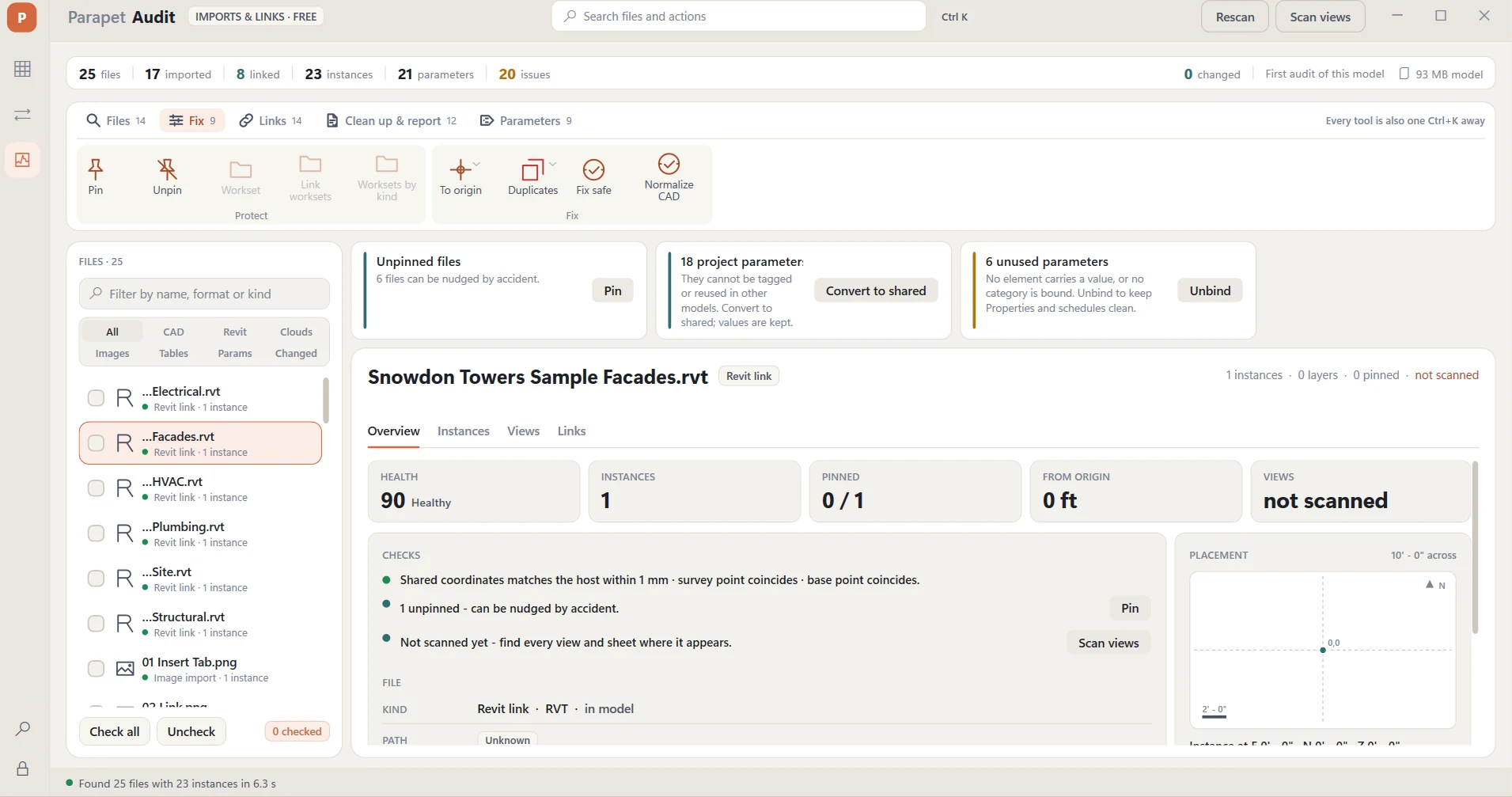
Parapet Audit is a free Revit add-in (no license key, no trial, no card - just a verified email) that puts everything in one list:

See everything. Imports, links, nested imports in families, their symbols and instance counts, with each file's weight (curves, meshes, layers). Duplicates, unused imports, files placed at the wrong scale or rotation, stray geometry and files on the wrong workset are flagged. The Layers tab shows what every layer carries; empty layers go off in one click.
Trace usage. For each CAD file: which sheets it ends up on and which views show it, grouped sheet by sheet, with the only place it is used marked. Jump to any view in one click, or hide the file in all of them.
Clean up safely. Select, isolate or delete with a confirmation that lists exactly what goes. One transaction, one undo.
Check the links too. Revit and IFC links get the same treatment: missing or unloaded files, links placed off the shared coordinates (with the offset in your units), models linked twice through nested links - and a Links tab that shows the whole nested tree.
A Revit model with DWG imports hidden in views, nested in families and on the wrong workset - and the Parapet Audit list that exposes them. Project.rvt · 412 MB survey.dwgdetail-vendor.dwg (in family)plan-old.dwg · hiddengrid.dwg · workset? Parapet Audit · 4 CAD files detail-vendor.dwgnested · 7 fam survey.dwgimport · 3 views plan-old.dwg0 sheets · hidden grid.dwglink · wrong workset Show views Isolate Delete · undo 412 MB → 168 MB after removing three imports nobody used on a sheet.
Where the weight hides: a vendor detail nested in seven families, a survey in three views, an old plan hidden everywhere, a link on the wrong workset.

A cleanup routine that works

  1. Run Audit; sort by weight. Delete imports that appear in no sheeted view.
  2. Replace surveys and consultant backgrounds with links (not imports) on a dedicated workset, visible only in the views that need them. Audit's Import → link does the swap at the same position, scale and rotation; Link worksets gives each link its own workset.
  3. Open families that contain imports, retrace with native detail lines, reload.
  4. Purge Unused twice, then let Audit's Purge import leftovers remove the import line styles, line patterns, and the line styles, fill patterns and text types exploded DWGs leave behind - in-use items are kept.
  5. Audit + Compact on Save. Compare file size before and after - it is usually the biggest single win available.

FAQ

Is Parapet Audit really free?

Yes, free forever, no key. It is our introduction to the Parapet tab; Hub and Link are paid apps in the same installer.

Can it find DWGs nested inside families?

Yes - nested imports inside loaded families are listed with the family that carries them.

Which Revit versions?

Revit 2020, 2021, 2022, 2023, 2024, 2025, 2026 and 2027.

Download Parapet Audit - free

One installer for Revit 2020-2027. Per-user install, no admin rights.

Download Parapet Parapet Audit details

Keep reading

Related guides, tutorials and comparisons.

All guides →